
Guide
Connect Neegma to ChatGPT and Claude
Plan and set up your Neegma events by chatting with your AI assistant.
Updated Nov 2, 2026 · 3 min read
Connect Neegma once, then ask your AI assistant to plan an event, pick games and set it up in your Neegma account. It takes about two minutes.
Step 1: Add Neegma to your assistant#
Use this address:
https://tryneegma.com/api/mcpClaude: open Settings, then Connectors, and choose Add custom connector. Name it Neegma, paste the address, and choose Connect.
ChatGPT: open Settings, then Apps & Connectors, and add a custom connector with the same address. On some plans this sits under the advanced settings, as developer mode.
Step 2: Sign in, or create your account#
A Neegma window opens. Log in, or create a free account with Google or your email.
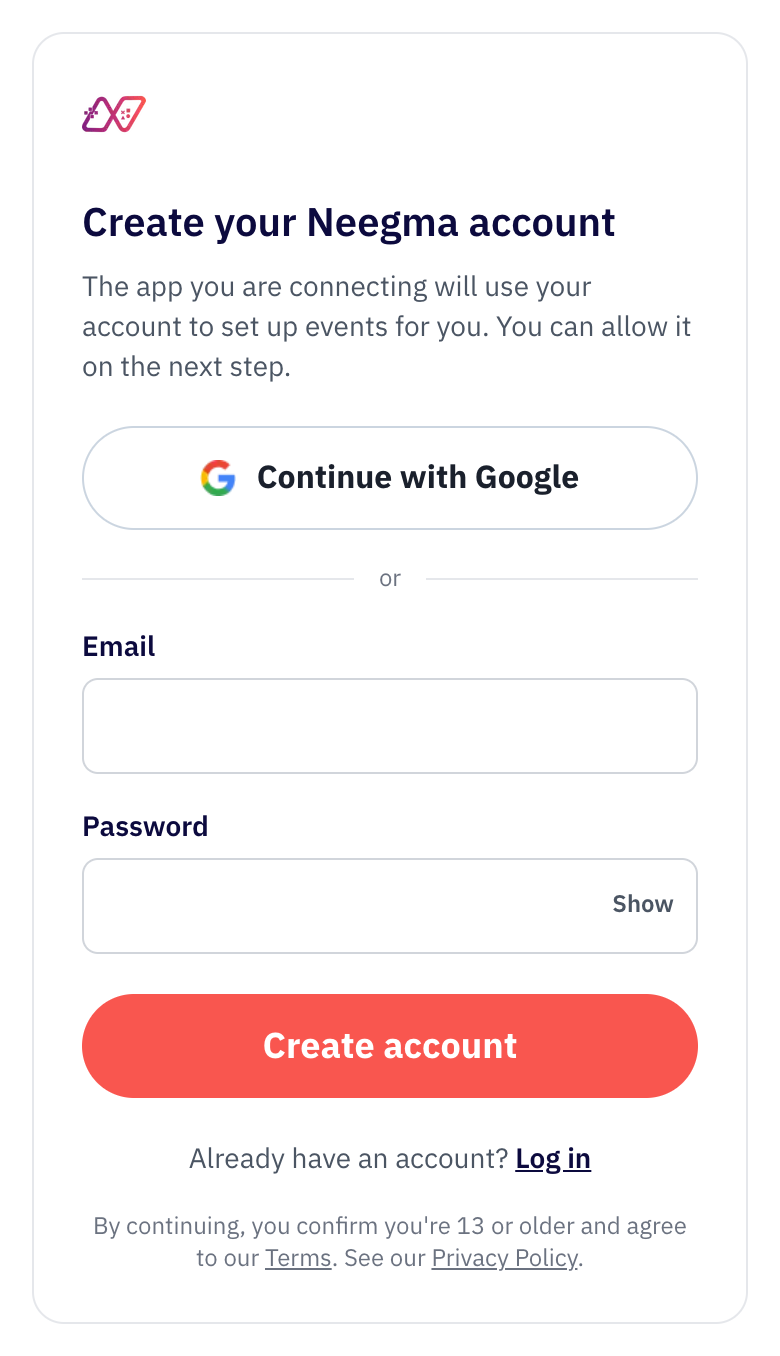
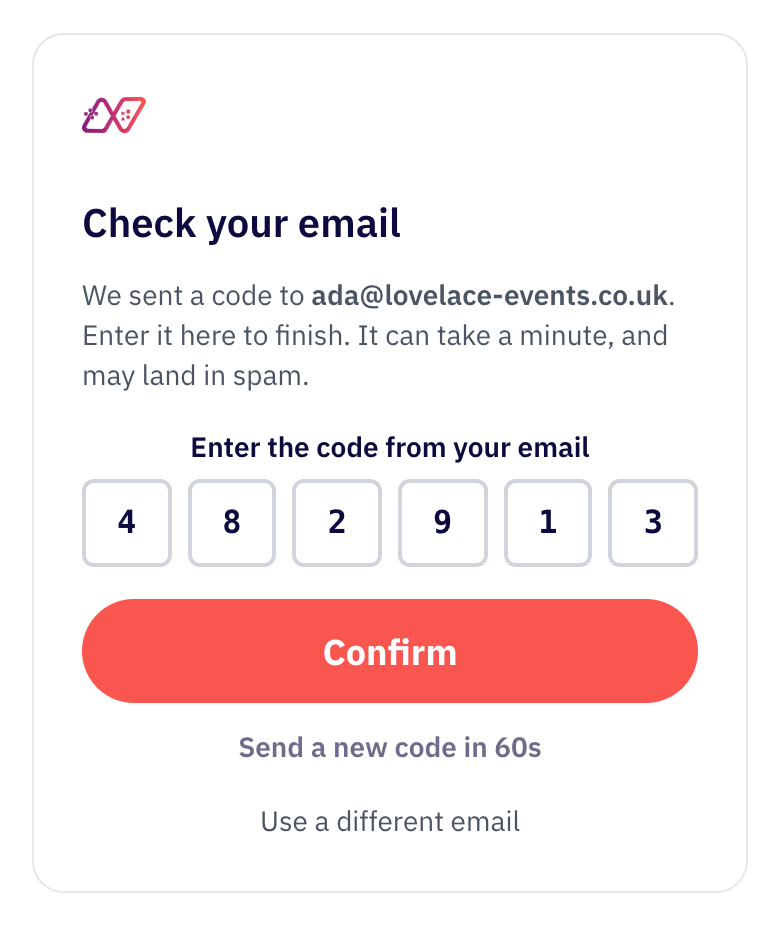
If you sign up with your email, we send you a 6-digit code. Type or paste it into the boxes in the same window.
Step 3: Allow access#
Check the screen names your assistant and the address it sends you back to, then choose Allow.
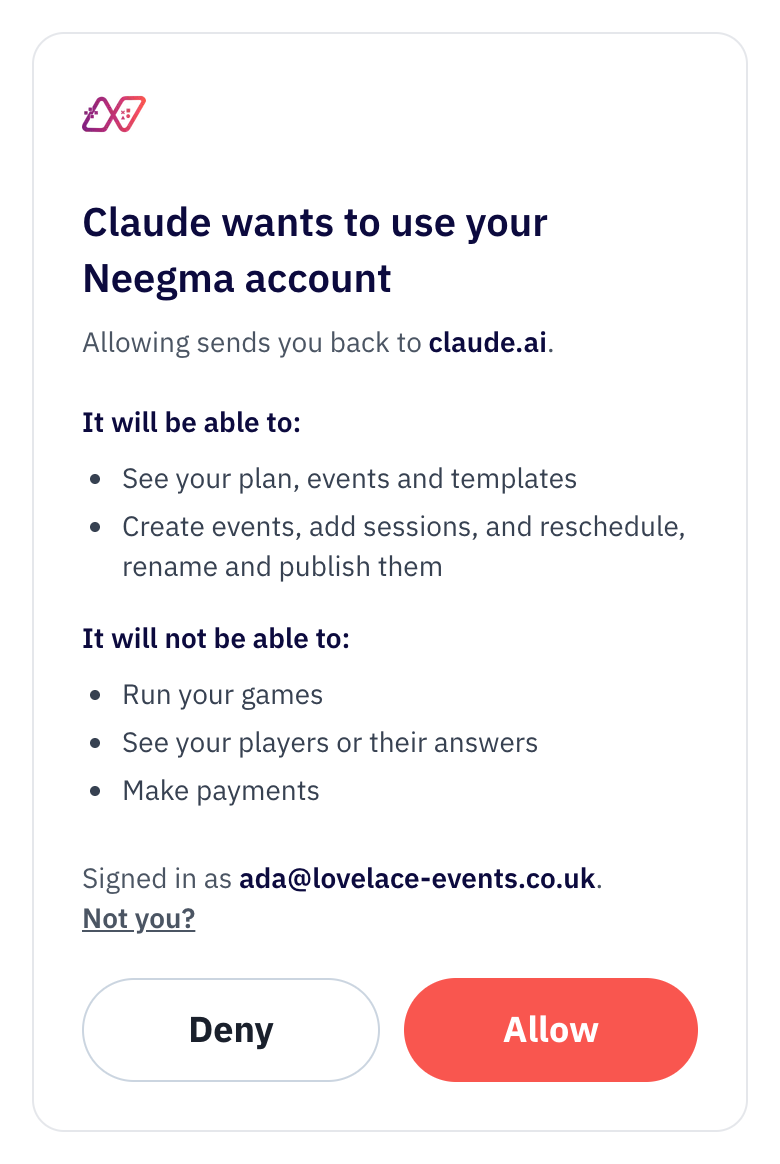
Your assistant can see your plan, events and templates, and create, schedule, rename and publish events. It cannot run your games, see your players or their answers, or make payments.
Step 4: Ask it to plan something#
The first time, it asks whether Neegma is for work or personal use, your name, and what you are planning. Then try:
- "Set up a team social for Friday at 4pm with a quiz."
- "Which games work for 30 people in one room?"
- "Move my Friday social to 5pm and publish it."
It sends you the event's links: one for your guests, and one for you to open on the day to run the games.
Disconnect#
Remove Neegma from your assistant's connector settings at any time.